You’re careful, but what about your kids?

It happens too often. I receive a voicemail or e-mail message from a client containing the somber words, “I think I have a virus.”

There is frequently an element of guilt and shame in the message, as if I would think badly of them for allowing this to happen. This is probably because everyone knows porn sites are common distributors of malware. But there are many other ways your system can become infected.

As we talk it over, the shame usually turns to frustration and annoyance. “I’ve been careful. I don’t surf to those sites and I don’t click on things that I shouldn’t. I don’t follow e-mail links that I don’t trust. I have anti-virus software. I’m doing everything right. Why did this happen?”

My next question is usually, “Do your kids use your computer?”

“Well, yes, but I’ve talked to them about being cautious as well, and they know about responsible web surfing…”

Doesn’t matter. The Internet is a minefield. New malicious sites pop up all the time, and there’s no practical way for the makers of anti-virus and parental control software to keep up with them all. You may never encounter such sites in your daily web routine, but that’s because the purveyors of malware are actively targeting topics that interest young people.

This article explains how the bad guys exploit web searches for top celebrity news, something that attracts mostly teens. Older folks like me, who couldn’t care less about Miley Cyrus’ latest antics and have never even heard of Lily Collins, may never encounter these traps.

But the pitfalls are still there and sometimes even we “mature” people stumble in. Once in a while I will do a web search for song lyrics. Mind you, any song I search for would have been recorded prior to 1986 (the year I graduated college and stopped paying attention to new music), but lyric sites attract all ages and are another frequent malware trap. Most any song lyric site you find will bombard you with pop-ups and malicious links. When your computer screen is going crazy like this, it’s easy to (even accidentally) click on something you shouldn’t. And before you know it, something has gotten into your browser and you have a problem.

Once a malicious program has installed itself on your system, it frequently opens the door for other malware. Think of it as a guy breaking into your house and then inviting his buddies over to eat all your food.

One of the issues I see most often is that malware has hijacked your browser’s search functions by replacing your default web search provider (such as Google or Bing) with another tool that captures information about your surfing patterns and web searches. This sort of information is valuable for marketing purposes. Sometimes these rogue search tools will change your browser’s home page, but often they are less obvious. Usually the first indication that you’ve been compromised is that you notice your PC running more slowly, especially when surfing the web. And as more bad programs are allowed into your system, performance continues to decline.

While this can be a significant annoyance, especially on older PCs that were never speed demons to begin with, there are malware removal tools that can deal with most of these problems with relative ease. But we are increasingly seeing instances of a more severe problem called ransomware, a malicious program that locks you out of your computer, displaying a warning message (frequently accusatory) and “helpful” instructions on how to send payment to disable the lock. This is, of course, extortion, and the authorities are going after these guys, but that doesn’t help you much if you’re currently a victim. Again, there are software tools that can remove ransomware, but the process tends to be tricky and time-consuming.

Unfortunately, there’s no surefire solution other than abandoning technology altogether and going off to live on a homestead with the Amish. Kids are always going to seek out the new and popular, and marketing is all about identifying predictable behaviors and exploiting them for profit. And there’s no reason kids shouldn’t be able to surf the Web for things that interest them — that’s what it’s there for. But if you’re wondering how on earth this stuff got all over your PC…mystery solved.

Welcome to the new solid-state era

We all like to have our purchasing decisions validated by experts. I don’t think I’m the only one who gets a little thrill when I decide to buy some home appliance and then see it highly rated in the next issue of Consumer Reports.

That’s why I was pleased this morning to see the technology site ars technica reporting that Seagate has decided to cease production of most 7200 RPM hard drives.

For years, most PC hard drives have had a platter rotation speed of 5400 RPM. To increase performance, manufacturers started offering drives that spin at 7200 RPM. The faster speed results in shorter access times and reduced latency. However, 7200 RPM drives run hotter and louder than 5400 RPM drives. The additional heat is especially problematic in notebooks.

(On high-end enterprise servers, which I tend to on my day job, disk drives have speeds of 10,000 to 15,000 RPM. That’s why we stash them away in data centers with big honking air conditioners.)

Solid-state drives have been available for a few years now. An SSD is flash memory, similar to your USB memory stick, but faster and shaped into a hard drive form factor. And in terms of data access speed, SSDs are anywhere from 10 to 40 times faster than mechanical hard drives.

As with any new technology, SSDs were prohibitively expensive when they came on the market, but as they’ve caught on, capacities have increased and prices have shrunk to the point where they are now a viable alternative (or complement) to mechanical drives.

When I built my new desktop, I wanted good disk performance but needed to keep the system as silent as possible. A 7200 RPM drive would have compromised that, with the drive’s own additional noise plus the extra heat making the PC’s cooling fans run harder. So I put in a Seagate Barracuda “green” drive running at 5900 RPM, and an Intel SSD to serve as a 64 GB cache drive (using SRT, which is mentioned in the ars article).

The results had already demonstrated to me that it was a sound (no pun intended) strategy, but the report reinforces that. Obviously I’m not the only one that came to this conclusion, and Seagate has decided that the modest performance pop you get with a 7200 RPM drive isn’t worth the additional cost (and heat, and noise) now that SSD prices have come down.

We can expect to see manufacturers like Seagate turning more and more to hybrid hard drives, which contain the flash memory cache and mechanical hard drive in the same unit. This would make the performance advantages available to everyone, since Intel SRT is only supported on certain motherboard models. But even the hybrid drives are only a stopgap measure until SSDs become sufficiently inexpensive and reliable to replace mechanical drives entirely.

SSDs have already proven to make great notebook upgrades. I recently replaced the hard drive in my wife’s 2007-vintage Dell laptop with an SSD and installed Windows 7. She and I were both surprised by how dramatic the improvement was. Any technology that makes my wife happy is a definite keeper.

So SSDs are here to stay. And while mechanical hard drives aren’t going away just yet, they’ve begun the long slow march toward technological obsolescence, just as vacuum tubes did when the transistor ushered in the first solid-state era sixty years ago.

RELATED POSTS:
The Wizard’s latest build (Windows 7 edition)

Coming to you live from Windows 7!

I realize how anticlimactic this sounds, with Windows 8 hype in full swing, but I’ve just gone live on my new Windows 7 PC. It was a tough slog to get there.

It’s been over two weeks since I finished the build, as documented in this post. That was the easy part. Getting the applications and data copied over was no picnic. It went smoothly for the most part, but took a lot of careful planning.

I started by going through all of the programs I had installed on the XP machine. I needed to weed out the stuff that I hadn’t used in forever, and the programs that would never work right on Windows 7. Some of these were utilities I had downloaded from PC Magazine back in the Stone Age. They were useful once, but most of their functionality has either been added to Windows or can be found in current utility programs.

Years ago I used a backup program from StompSoft called BackupMyPC. I still had some old backup images that I wanted to preserve, so instead of trying to get the Stomp program to install on Windows 7, I ran it on my XP system to restore the old images, then packed them into zip files. So now I’ve freed those old saves from the clutches of an obsolete program.

Once I got my software list pared down to a few dozen crucial items, it was time to kill trees.

I created a migration checklist with each of the programs I needed to reinstall. I also had to make print screens of all nine of my e-mail account definitions in Outlook, since those would have to be manually re-entered. For downloaded software, I had to search though my e-mail archives to get license keys. I found everything I needed. Sometimes it pays to be anal retentive.

Then it was several days of switching back and forth between the new and old PCs to install all the non-critical stuff, saving my everyday applications like Outlook and Quicken for last. Finally, by today, I was ready for the final push.

I used Macrium Reflect to create an image backup of my XP system. One of the things I really like about this backup program is that it allows you to mount a backup image as a drive in Windows Explorer, so I was able to copy my documents and databases onto the new system by clicking and dragging. (I was impressed enough with the trial version that I’m coughing up the $60 to license the Professional version of Reflect for my new box.) In case I discover months from now that I missed something I need, I can go back to that image archive on my backup drive to recover it.

Once the image was saved and verified, it was time to shut down the XP system and move the video and sound cards over.

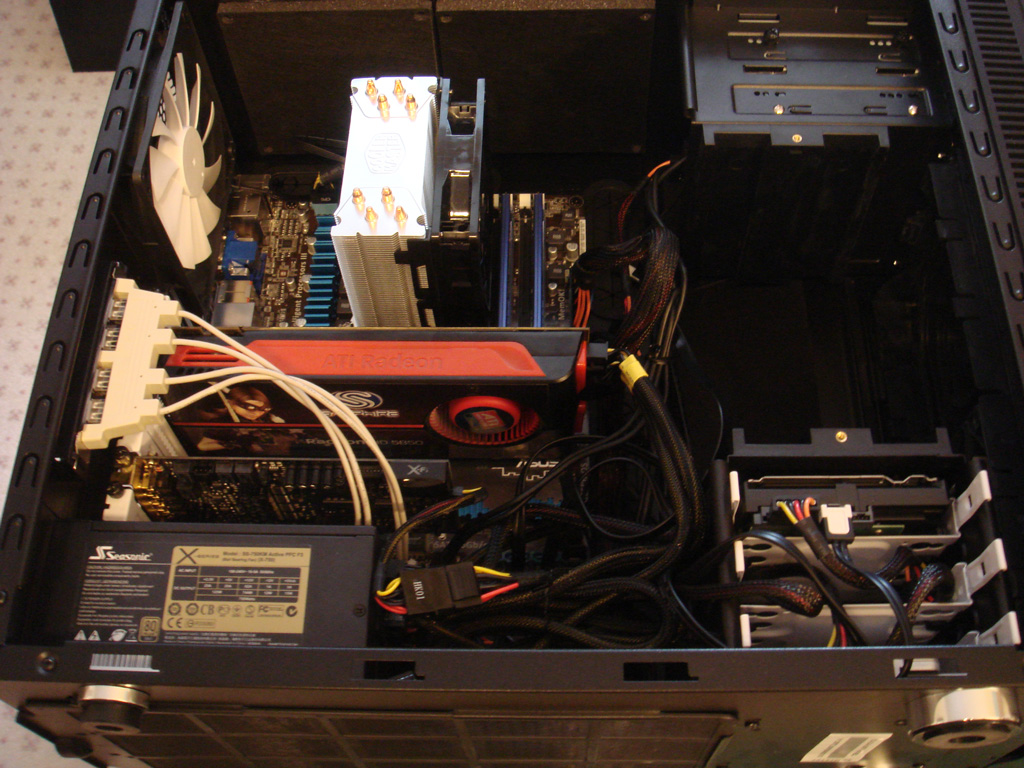
Both the Radeon HD 5850 graphics card and the Sound Blaster X-Fi Elite Pro audio card have some useful life left in them. Newer video cards smoke the 5850, of course, but it’s more than enough for the few PC games I play. (I have a PlayStation 3 for “serious” gaming.) And while the X-Fi cards are no longer sold, Creative still supports them and has Windows 7/8 drivers available for download.

Unfortunately, both the video and sound cards require their own power leads. You can also see the beige USB adapter I’ve added to give myself a few more USB 2.0 ports. So now I have an even bigger cluster of cables in this thing. And even if I did go to the trouble of routing all the cables neatly, I’d be guaranteeing that something would fail and I’d have to tear it all apart to get at it. So I guess I’m just destined not to have pretty innards on my PCs.

Here is the migration spreadsheet with my notes. This is actually the sixth or seventh revision of the sheet, and you can see I still have a few items pending. But it’s all minor stuff. The system is up and functional, and I’m writing this post on it. It runs nice and fast, and is absolutely silent – not a whisper of fan noise.

So now, after all this effort, I’m the proud owner of a system that is only three years out-of-date instead of twelve. Progress!

RELATED POSTS:
The Wizard’s latest build (Windows 7 edition)